
Monitoring and alerts explained
What Coris watches after onboarding, when each check runs, and how alerts reach your team.
Coris checks each merchant when it joins your portfolio, when new data arrives, and on a schedule. A check that finds a risk opens an alert in the portal. Merchant alerts cover the business, and transaction alerts cover single payments.
Alert categories
Your program decides which of these categories are on. A rule can also combine signals from several categories.
| Category | What opens an alert |
|---|---|
| Registration and identity | A business registration lapses, or the name, address or owners change. |
| Application fraud | The details on a new application do not match the business they claim to be. |
| Website | The website goes inactive or its domain lapses, or it shows products your policy does not allow. |
| Adverse media and legal | New negative news, a lawsuit or a bankruptcy filing appears for the business or its owners. |
| Sanctions | The business or an owner matches a sanctions list. |
| Reviews and reputation | Review ratings drop, or reviews mention problems your policy flags. |
| Credit and financial health | Business credit data shows new financial stress. |
| Disputes and refunds | Chargebacks or refunds rise past the level your policy allows. |
| Volume and ticket size | Payment size goes past what you approved for the merchant, or volume jumps in a short window. |
| Transaction fraud | A single payment looks risky, such as card testing or a payer linked to other fraud. |
| Processor fraud signals | For Stripe accounts, a Stripe Radar review or an early fraud warning arrives. |
The last two categories open transaction alerts. The rest open merchant alerts.
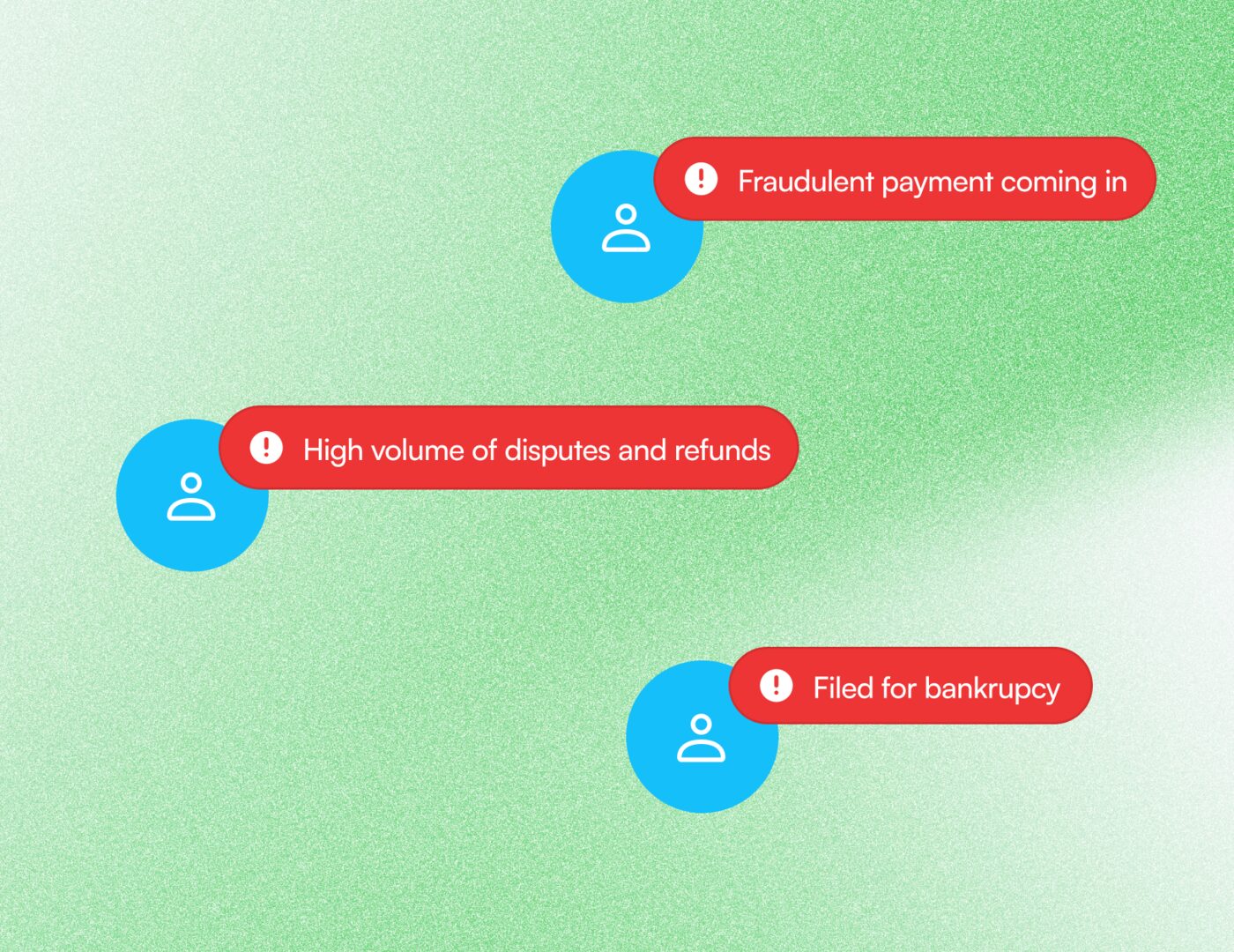
Product view from coris.ai, simplified for illustration. It shows (1) a transaction fraud alert, (2) a disputes and refunds alert, and (3) a legal alert.
When checks run
| Trigger | What runs | When |
|---|---|---|
| Onboarding | The checks your program runs on a new merchant | Once, when you create the account by API, by file or through a processor connection |
| Events | The checks tied to that kind of change | When Coris receives the event, such as an account update, a new, refunded or disputed payment, or a document or identity check result |
| Schedule | Re-checks of business data and payment trends | Daily, weekly, every two weeks or monthly, as set for your program |
Time to a first alert
- Events: the check starts as soon as Coris receives the event.
- Payment data from files: payment checks run as soon as each file arrives, so their timing follows your processor's delivery schedule.
- Schedule: a change shows up at the next run. Coris completes each scheduled run within the timeline agreed with your program.
An account with no findings raises no alert.
Example rule, written as policy
Example only: "Alert when a merchant's website cannot be reached for 3 days in a row, and send it to the standard review queue."
A rule names what it watches, when it fires and where the alert goes. Rules belong to your workspace, so each program can have its own.
You set up your own rules, and you can change them at any time. A Coris risk specialist can help you draft them from your risk policy, during onboarding or later. To get help, ask Coris.
Portfolio views
Filter by ISO and sponsor bank
The Merchant Alerts and Merchant Portfolio pages filter by ISO and by sponsor bank when your accounts record them. Accounts store these values in boarded_iso and sponsor_bank. By API, filter List accounts with the same two fields.
Track outcomes
Each merchant alert carries a status.
| Status | Meaning |
|---|---|
| Open | No one has reviewed the alert yet. |
| In review | A reviewer is working the alert. |
| Waiting for merchant response | The reviewer asked the merchant for more information. |
| Valid closed | The alert showed a real risk, and the reviewer closed it. |
| Invalid closed | The alert was a false alarm. |
| Canceled | Coris withdrew the alert, for example when the check that raised it was undone. |
The queue action a reviewer picks sets the status, so closed alerts record what your team decided.
Where to go next
Updated about 2 hours ago